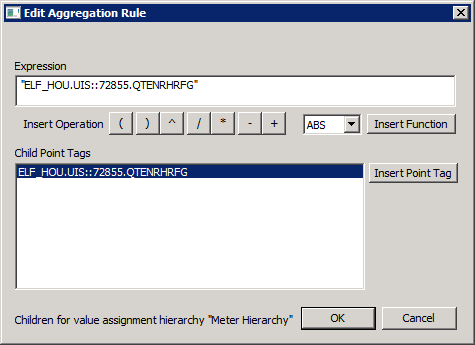
If a meter group is not directly forecasting its own forecast value, it can be assigned a value based on an aggregation of the forecasts of its children. This may be useful in displaying a forecast value for a logical grouping that does not have any meaningful associated input data, and thus no calculated forecast. An aggregation that is representative of child meter or groups may be useful for reporting purposes. Group aggregation configuration takes the form of an arithmetic expression.
Aggregation can be used to create a multi-directional meter representation. For example, a group can be created with a receipt and delivery meter as children, and an aggregation can be setup for the group that subtracts the receipt meter’s forecast from the delivery meter’s forecast.
Note: The meter group must not have an associated neural network definition active in the system.
To Configure Aggregation from Children
The properties on the Edit Aggregation Rule dialog box are described below.
| Parameter | Description | ||||||||||||||||
|---|---|---|---|---|---|---|---|---|---|---|---|---|---|---|---|---|---|
|
The arithmetic expression to be used to aggregate the forecast for this meter group. The expression may consist of constant value terms, operations, functions, and/or meter or group facility tags. In the case of a facility tag, the net forecast value for the meter or group will be substituted. Any meter or group facility tags contained in the expression must be child facilities of the target group. |
|||||||||||||||||
|
Click to insert the desired operation into the expression: parentheses, exponentiation, division, multiplication, subtraction, and addition. |
|||||||||||||||||
|
Function |
Select one of the following functions:
|
||||||||||||||||
|
Insert Function |
Click to insert the selected function into the expression. |
||||||||||||||||
|
Select the point tag for the child facility of the target group. Note: CygNet tags as operands in the expression must be enclosed in double quotes (for example, “ELFTEST.UIS::METER-1.VOLLF”+”ELFTEST.UIS::METER-2.VOLLF”/2). |
|||||||||||||||||
|
Insert Point Tag |
Click to insert the selected point tag into the expression. |

|
|
|

